
Automating Root Password Rotation with Satellite, Ansible, and HashiCorp Vault
Managing root passwords at scale is one of the biggest headaches for system administrators. The common practice of manual password rotation is often inconsistent, error-prone, and easily skipped, leaving your infrastructure vulnerable to security risks. In today’s security-conscious environments, keeping passwords in a Word document on a local hard drive is simply not a viable solution.
For organizations that must adhere to strict compliance standards, such as a Department of Defense (DOD) environment, the requirements are even more demanding. Security Technical Implementation Guides (STIGs) mandate that user account passwords have a 60-day maximum lifetime. Manually tracking and changing these credentials across an entire fleet of servers is a monumental task.
Fortunately, with the right tools, you can build a robust, automated system that rotates root passwords on schedule, stores them securely, and maintains a full version history for auditing. This article illustrates how to achieve this using Red Hat Satellite, Ansible, and HashiCorp Vault.
The Building Blocks: Tools for the Job
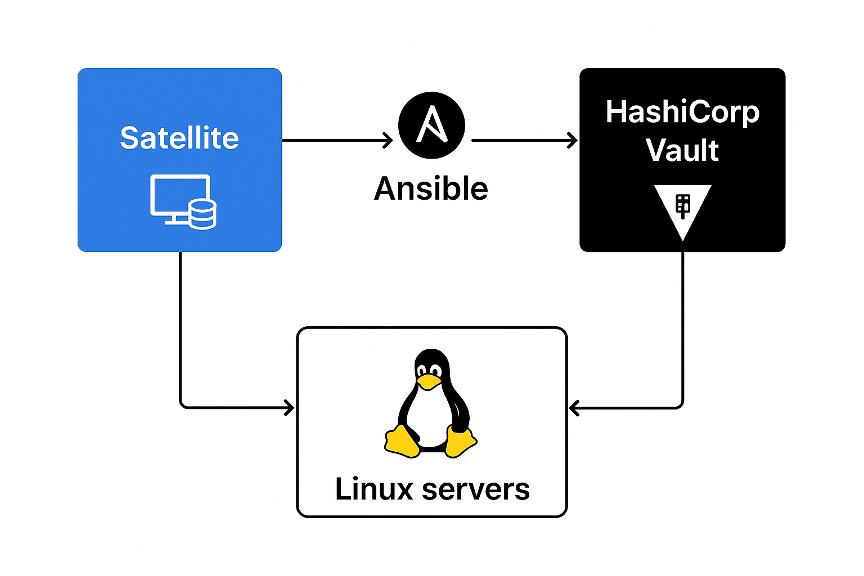
This solution integrates three powerful components to create a seamless automation workflow.
- Red Hat Satellite: Think of Satellite as the central command center for your Red Hat Enterprise Linux (RHEL) infrastructure. It’s a system management tool that handles patching, provisioning, and configuration management for your entire fleet of servers. In this solution, Satellite acts as the orchestrator, scheduling and triggering the automated password rotation job across all managed hosts.
- Ansible: An open-source automation engine that handles configuration management, application deployment, and other IT tasks. Its key feature is being agentless, meaning it communicates with servers over standard SSH without needing special software installed on them. Here, Ansible is the “hands on the keyboard,” executing the playbook that logs into each server, changes the password, and communicates with Vault.
- HashiCorp Vault: A powerful tool built specifically for secrets management. Instead of storing sensitive data like passwords, API keys, or certificates in plain text files, Vault provides a secure, centralized, and auditable place to store and tightly control access to them. It serves two critical roles in this workflow: generating a cryptographically secure random password and storing the new password safely after it has been changed.
How It Works: The Automated Workflow
These components work together in a simple, four-step process to ensure passwords are changed and stored without any manual intervention.
- Vault Authentication: The process begins with the Ansible playbook authenticating to Vault using a secure AppRole, which is ideal for automated workflows.
- Password Generation: A secure, random password is generated directly by Vault’s built-in cryptographic tools.
- Root Password Update: Ansible uses its
usermodule to securely log into the target Linux server and update the root account’s password. - Vault Storage: The new password, along with metadata such as the timestamp and rotation source, is written back into Vault. This creates a versioned history for full auditability.
Step-by-Step Implementation Guide
Here is how you can configure this solution in your own environment.
Step 1: Configure Satellite for Remote Execution
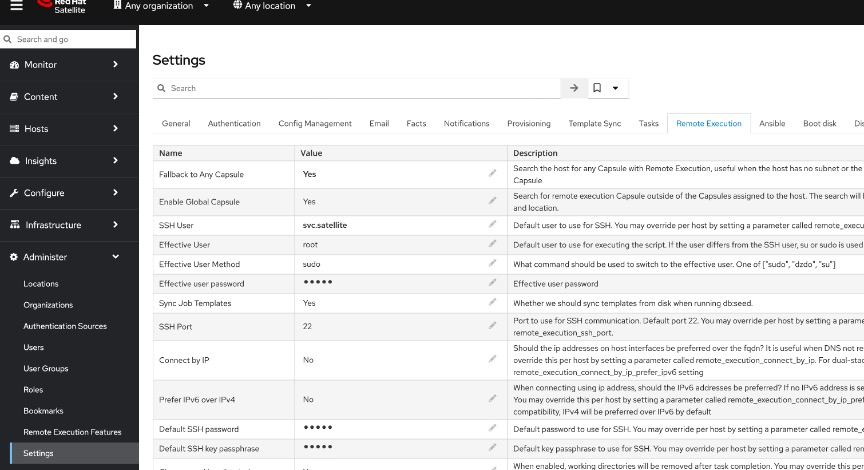
Before creating any job templates, you must ensure that your Red Hat Satellite server can execute scripts on all your managed hosts. This is typically handled by a dedicated SSH user.
You will need to configure a service account that Satellite can use for authentication. This setting can be found in the Satellite UI by navigating to Administer > Settings > Remote Execution and configuring the “SSH User” field with your designated service account.
Step 2: Configure HashiCorp Vault
First, you need to enable and configure AppRole authentication and create a policy that grants Ansible the necessary permissions. Vault Enterprise was used for this implementation, so there could be changes that need to be done to port this over to the OSS version, ex. (namespaces don’t exist and the “vault_path” could be slightly different)
1. Enable AppRole Authentication in Vault:
vault auth enable approle
2. Create a Role for Ansible: This command creates a role with long-lived token settings suitable for automation.
vault write auth/approle/role/ansible-role secret_id_ttl=0 token_ttl=0 token_max_ttl=0
3. Create and Assign a Vault Policy: Create a policy file named policy.hcl with the following content. This policy allows the role to generate random passwords and manage secrets within the specified path.
# policy.hcl
path "sys/tools/random/*" {
  capabilities = ["read","update"]
}
path "kv/data/servers/*" {
  capabilities = ["create","read", "update", "delete", "list"]
}
4. Apply the Policy and Get Credentials: Apply the policy and retrieve the role_id and secret_id that you will provide to Ansible.
vault write auth/approle/role/ansible-role token_policies="ansible-role-policy"
vault policy write ansible-role-policy policy.hcl
vault read auth/approle/role/ansible-role/role-id
vault write -f auth/approle/role/ansible-role/secret-id
Step 3: Create the Ansible Playbook in Satellite
Next, create a job template in Red Hat Satellite and add the Ansible playbook.
1. In the Satellite UI, navigate to Hosts → Templates → Job Templates.
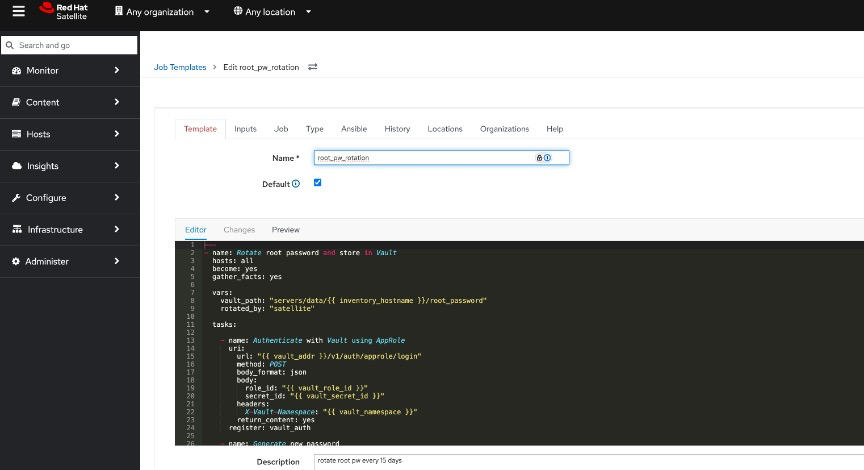
2. Create a new Ansible Job Template.
3. Paste the following playbook into the template editor. Note that the “hosts” value is set to “localhost” as the Satellite Server will be using the hosts that your job is setup to use on the next step.
---
- name: Rotate root password and store in Vault
  hosts: localhost
  become: yes
  gather_facts: yes

  vars:
    vault_path: "servers/data{{ inventory_hostname }}/root_password"
    rotated_by: "satellite"
    password_length: 15

  tasks:

    - name: Authenticate with Vault using AppRole
      uri:
        url: "{{ vault_addr }}/v1/auth/approle/login"
        method: POST
        body_format: json
        body:
          role_id: "{{ vault_role_id }}"
          secret_id: "{{ vault_secret_id }}"
        return_content: yes
      register: vault_auth

    - name: Generate base password (letters, digits, punctuation)
      set_fact:
        raw_password: "{{ lookup('password', '/dev/null length=' ~ password_length ~ ' chars=ascii_letters,digits,punctuation') }}"

    - name: Patch password to meet STIG minimums
      set_fact:
        new_password: >-
          {{
            (raw_password + '12@#')[:password_length]
          }}

    - name: Set root password
      user:
        name: root
        password: "{{ new_password | password_hash('sha512') }}"

    - name: Store new password in Vault with metadata
      uri:
        url: "{{ vault_addr }}/v1/{{ vault_path }}"
        method: POST
        headers:
          X-Vault-Token: "{{ vault_auth.json.auth.client_token }}"
        body_format: json
        body:
          data:
            password: "{{ new_password }}"
            rotated_by: "{{ rotated_by }}"
            rotated_at: "{{ ansible_date_time.iso8601 }}"
        status_code: 200
        return_content: yes
4. In the template configuration, provide the following variables. These are crucial for the playbook to connect to your Vault instance and authenticate correctly.
vault_addr: The URL of your HashiCorp Vault instance.vault_namespace: The Vault namespace where the secrets reside. This is specific to the Enterprise version of Vault; it would not be used in the community version.vault_role_id: The RoleID that identifies the AppRole used for authentication.vault_secret_id: The SecretID credential required for the AppRole login.
Step 4: Schedule the Recurring Job
Finally, schedule the job to run automatically.
- Navigate to Monitor → Jobs in the Satellite UI.
- Create a new job using the template you created in the previous step.
- Define a recurring schedule (e.g., every 59 days to stay within the 60-day compliance window).
- Assign the job to all managed hosts. It is highly recommended to use a dynamic filter, such as a Host Group or Host Collection. Using a dynamic filter ensures that new servers added to your environment are automatically included in the password rotation schedule, making the solution truly scalable.
Benefits of This Automated Approach
Once implemented, this solution provides immediate and significant advantages for your security and operations teams.
- Strong Security: No passwords are ever exposed in plain text; the entire process is managed securely through Vault.
- Compliance-Friendly: Every rotation is timestamped and versioned, creating a clear audit trail for compliance checks.
- Scalable: The solution works seamlessly across hundreds or thousands of servers managed by Satellite.
- Low Overhead: After the initial setup, the automation requires minimal administrative effort to maintain.
Conclusion
Root password rotation doesn’t have to be a painful, manual process. By orchestrating with Satellite, automating with Ansible, and securing with Vault, you can establish a robust, repeatable, and auditable process for managing privileged credentials across your entire environment. This solution not only strengthens your security posture but also frees your team from tedious, high-risk manual work—a win-win for both security and operations.
If you are interested in implementing this automated solution in your environment, contact our team today to learn how we can help.
